Article Progress
Do you ever get tired of not knowing where you are in the article you're reading? This responsive scrollbar will give you a good idea of how much you have left to read. You have the option to include it on either the right side of the page or the top of the page. The colors can be changed to fit your preference.
View Demo

Link with the JS and CSS files:
            <head>
                <!-- Everything Else in Head -->

                <!-- Article Progress Stylesheet -->
                <link rel="stylesheet" href="css/articleProgress.css" />

                <!-- minified jquery & Article Progress plugin script -->
                <script src="Truss/plugins/articleProgress/js/jquery-2.1.4.min.js"></script>
                <script src="Truss/plugins/articleProgress/js/articleProgress.js"></script>

                <script>
                    $(document).ready(function() {
                        $('.scroll').articleScroller({
                            backgroundColor: "#000000",
                            dividerColor: "green"
                        });
                    });
                </script>
            </head>
HTML Markup:
    <div class="top-scroll-area"> <!-- Copy/Paste this code for the top scrollbar -->
        <div class="bar"></div>
        <ul class="markers">
            <li></li>
            <li></li>
            <li></li>
            <li></li>
            <li></li>
        </ul>
    </div>


    <div class="right-scroll-area"> <!-- Copy/Paste this code for the righthand scrollbar -->
        <div class="bar"></div>
        <ul class="markers">
            <li></li>
            <li></li>
            <li></li>
            <li></li>
            <li></li>
        </ul>
    </div>


    <!-- Include the text you want the scrollbar to be attached to in the section class="scroll" div -->
    <section class="nonscroll">
        <p>Short Text</p>
    </section>
    <section class="scroll">
        <p>Long Text</p>
    </section>
    <section class="nonscroll">
        <p>Short Text</p>
    </section>
photoApp
The photoApp plugin is a jquery plugin that gives you:
1. Sort capabilities of hundreds of photos based on the day, month or year each photo was taken
2. Fullscreen view of each photo when a photo is clicked (tapped on mobile)
3. Date of each photo at the top of the page and a view of all thumbnail photos at the bottom of the page
4. Use of swipe or keyboard to go to previous or next photos
More coming soon!
View Demo!
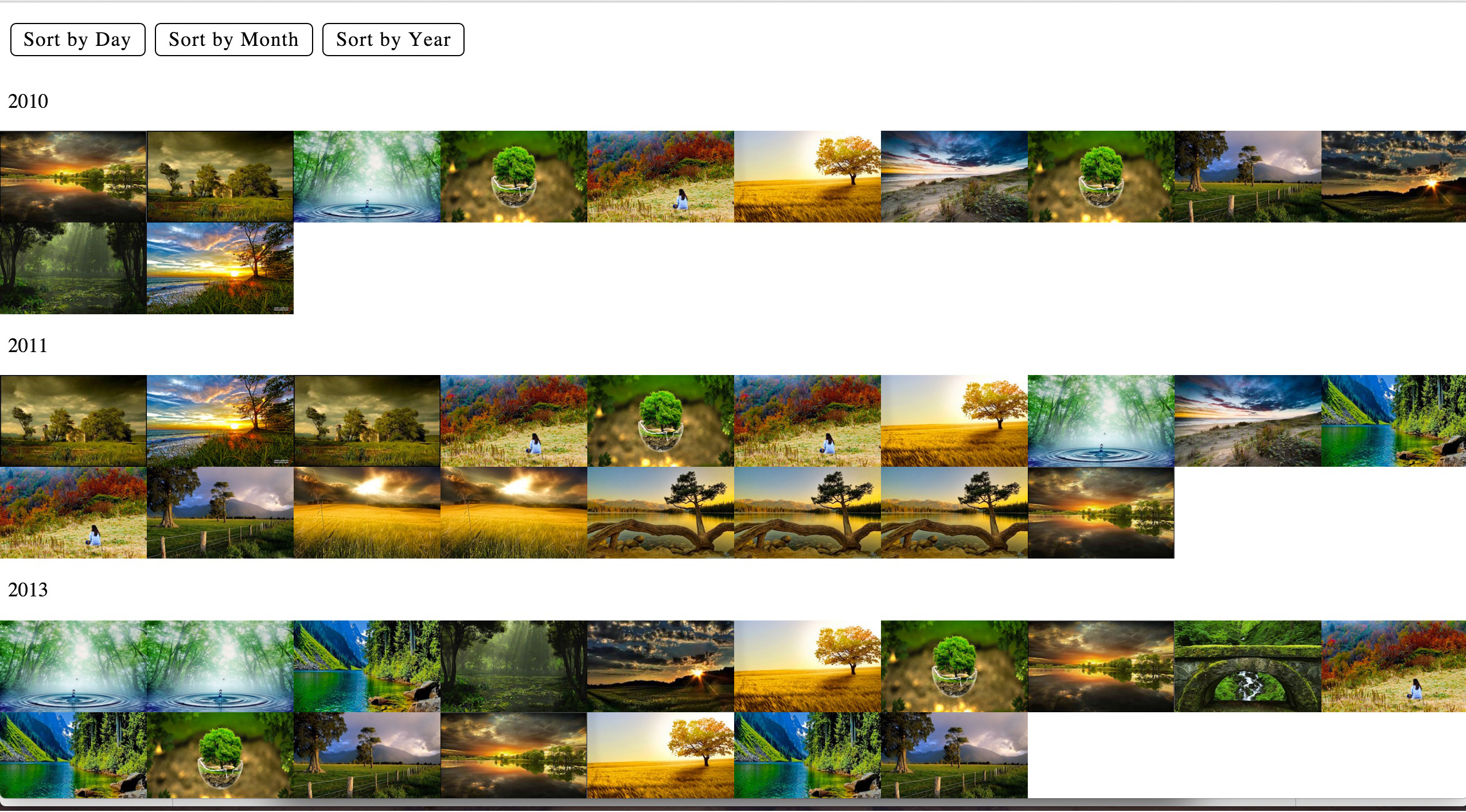
How to use?
The photoApp plugin uses the HTML time tags <time> datetime="2014-04-23" /></time> that is the placed as the sibling of each image <img src="img/img1_thumb.jpg" /> and provides sorting feature bases on day, month and year.
If you don't want the plugin to sort the photos when the page loads, set this option to false: sortOnLoad: false;. If you don't want to have the sorting feature activated at all, set this option to false as well: activateSort: false;. In this case, the buttons related to sorting will be taken out of the page.
Link with the JS and CSS files:
    <head>
        <!-- photoApp stylesheet -->
        <link rel="stylesheet" href="css/normalize.css" />
        <link rel="stylesheet" href="css/photoApp.css" />

        <!-- minified jquery & photoApp plugin script -->
        <script src="Truss/plugins/photoApp/js/jquery.min.js"></script>
        <script src="Truss/plugins/photoApp/js/jquery.photoApp.js"></script>

        <script>
              $(document).ready(function() {
                  $("#photoCollection").photoApp();
              });
        </script>
    </head>
HTML Markup:
    <!-- For the demo, each photo's original size is 1680 x 1050 pixels -->
    <!-- For the demo, each thumbnail's original size is 370 x 231 pixels -->

    <div id="photoCollection">
        <div data-src="img/img1.jpg">
            <img src="img/img1_thumb.jpg" />
            <time datetime="2014-04-23"></time>
        </div>
        <div data-src="img/img2.jpg">
            <img src="img/img2_thumb.jpg" />
            <time datetime="2013-04-12"></time>
        </div>
        <div data-src="img/img3.jpg">
            <img src="img/img3_thumb.jpg" />
            <time datetime="2013-01-26"></time>
        </div>
    </div>
Piano
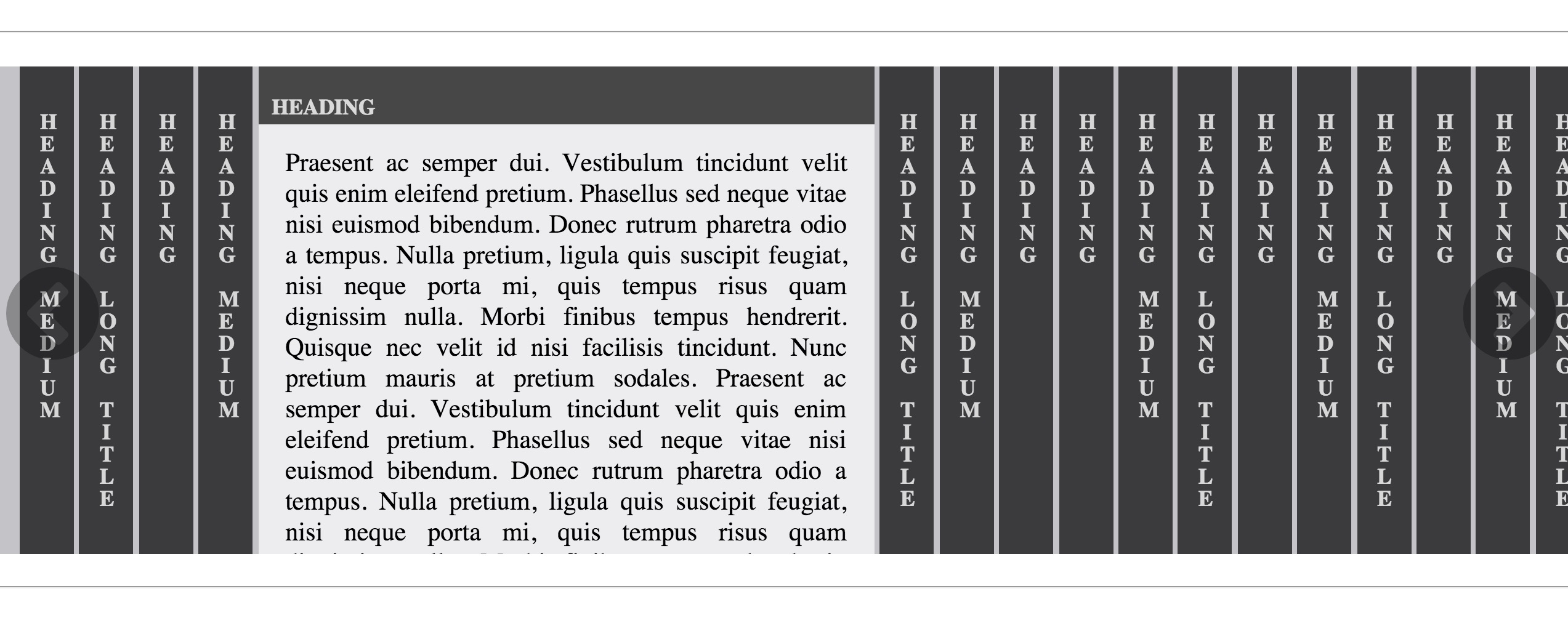
The Piano Plugin is your typical accordion plugin with a fancy twist - verticle text and accordion functionality that won't change the height of your webpage.
View Demo!
Link with the JS and CSS files:
        <head>
             <!-- Piano stylesheet -->
             <link rel="stylesheet" href="Truss/css/normalize.css" />
             <link rel="stylesheet" href="Truss/css/piano.css" />

             <!-- minified jquery & Piano plugin script -->
             <script src="Truss/plugins/piano/js/jquery.min.js"></script>
             <script src="Truss/plugins/piano/js/jquery.piano.js"></script>

             <script>
                     $(document).ready(function() {
                         $("#container").piano();
                     });
             </script>
        </head>
HTML Markup:
         <div id="container">
             <div>
                 <h3>some heading</h3>
                 <div>some text</div>
             </div>

              <div>
                 <h3>some heading</h3>
                 <div>
                     <p>some text<p>
                     <p>some text<p>
                 </div>
             </div>

              <div>
                 <h3>some heading</h3>
                 <div>
                     <ul>
                         <li>some text</li>
                         <li>some text</li>
                         <li>some text</li>
                     </ul>
                     <p>some text<p>
                 </div>
             </div>

              <div>
                 <h3>some heading</h3>
                 <div>
                     <p>some text<p>
                 </div>
             </div>

         </div>
Back2TheTop
The Back2TheTop plugin is a plugin that incorporates a small button at the bottom right hand part of your screen. It appears when you start to scrool, and will bring you back to the top of your page when clicked.
View Demo!
Link with the JS and CSS files:
        <head>
             <!-- Back2TheTop stylesheet -->
             <style>
                     #back2TheTopId {
                        /* modify below css for your needs */
                        /* for example - left: 20px        */
                        width: 35px;
                        height: 35px;
                        right: 20px;
                     }
             </style>

             <!-- minified jquery & Bact2TheTop plugin script -->
             <script src="Truss/plugins/Truss-Back2TheTop/js/jquery.1.11.3.min.js"></script>
             <script src="Truss/plugins/Truss-Back2TheTop/js/jquery.back2TheTop.js"></script>

             <script>
                     $(document).ready(function() {
                         $("#back2TheTopId").back2TheTop();
                     });
             </script>

             <!-- If desired include and modify the options for back2TheTop Arrow Image -->
             <script>
                     $(document).ready(function() {
                         $("#back2TheTopId").back2TheTop({
                               shownAt: 150,
                               fadeSpeed: 2000,
                               scrollSpeed: 1000,
                               arrowImage: 'round-grey'
                               });
                     });
             </script>
        </head>
| Option |
Description |
Type |
Default |
| shownAt |
Where scroll image should show based on scrollbar's vertical position. (higher the number, the longer it takes for scroll image to appear) |
Integer (px) |
150 |
| fadeSpeed |
Control 'Fade' effect speed for scroll image. |
Integer (ms) |
2000 |
| scrollSpeed |
Control speed when animation scrolls up. |
Integer (ms) |
1000 |
| arrowImage |
Selects the Arrow Image. Image names: white, black, red, grey, green, round-blue, round-green, round-orange, round-grey, round-corner-grey, round-corner-black, round-broken-line. |
String (image) |
round-grey |
HTML Markup:
<div id="back2TheTopId">BACK 2 THE TOP</div>